
Setup & user guide
Install the app, connect your first Workflow, and manage assignments and sequential approvals.
- Last revised
- October 24, 2026
- Status
- 1.0
- App
- Assign People from Columns
On this page
Before you start
An account administrator must install and authorize Assign People from Columns. The account needs a supported monday Workflows/Automations setup and an active mapped app plan, including the native Free plan if offered. An explicit board owner configures the app; account-admin status alone does not make someone a board owner. Viewer accounts cannot use the API-backed app views or approval actions; ask an account administrator about member access.
For assignment, prepare a source People column (or a People-backed Mirror) and a separate writable destination People column. For approvals, prepare one People source per stage, a separate Current Approver People column, and a writable Status column with distinct Approved/Rejected labels. The OAuth installer must be able to access relevant private/shareable and connected boards.
Install and open the app
- Install the app from its approved monday Marketplace listing and accept its requested permissions as an account administrator.
- Open your board and add the Assign People from Columns Board View through monday's app/view menu.
- Choose “Assign from a People column”, “Assign from connected data”, or “Run sequential approvals”.
- Add the app's Item View if users will make approval decisions.
The app uses monday's board/item context. Do not paste an OAuth token into the app.
Your first People-column assignment
- Open Setup → New assignment. Give the configuration a descriptive name.
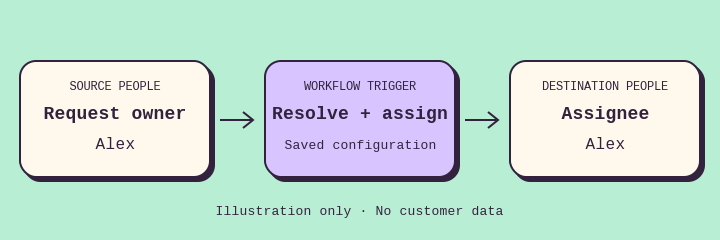
- Select People column, then choose “Read owner from” and a different “Write owner to” column.
- Choose “Replace existing assignment” or “Only assign when destination empty”. Enable multiple resolved assignees only if the source and destination need/support them.
- Use “Preview on an item” with a representative item ID. Preview reads draft values but does not save or write an assignment.
- Enable the configuration, select “Save configuration” and confirm “Configuration valid”.
- Select “Copy Workflow ID” and create a monday Workflow with the desired trigger and “Assign item from People column” action.
- Bind boardId to the current board, itemId to the triggering item, and configurationId to the copied ID. Enable the Workflow.
- Trigger it on a test item, inspect the destination and check Activity for “Owner assigned” or the expected “Assignment skipped”.
Assign from connected data
- Create a Connect Boards relationship and a Mirror exposing a People column from the connected board.
- Choose “Assign from connected data” or Setup → New assignment → Connected Mirror.
- Select the supported Mirror source and a separate writable People destination; configure write mode and multiple targets as needed.
- Preview against an item with an accessible populated linked value, enable and save the configuration, and copy its Workflow ID.
- Use “Assign item from mirrored People/Team value”, binding boardId, itemId and configurationId as above. Test the actual trigger and read back the destination.
The app validates underlying People types; it does not guess people from displayed Mirror text. Teams retain their Team identity and are not expanded to members. Team membership alone does not make an item appear in members' My Work.
Start a sequential approval
- Open Approvals → New approval and enter a unique approval name.
- Select the dedicated Current Approver People column, writable final Status column and distinct Approved/Rejected labels.
- Add named stages in order, selecting one source People column each. Choose Required or Run if populated. Each populated stage must resolve to exactly one active person; Teams and multiple people are not supported as approvers.
- Preview an item and inspect the effective chain. Empty optional stages are skipped; a required empty stage prevents start.
- Enable and save, copy the Workflow ID, and connect a “Start sequential approval” action with boardId, itemId and approvalDefinitionId.
- Trigger the Workflow. The first effective approver becomes Current Approver and is notified through monday.
- Open the item's app Item View. Only the effective current approver may Approve or Reject. Rejection requires a reason.
- After the final decision, inspect the final Status and Activity. Use Refresh and the offered Retry update controls if a monday effect is pending.
A running approval snapshots its definition and approvers. Later edits do not silently alter it. The Current Approver column is managed output, not authorization truth; avoid manual edits or competing automations. Reasons are stored verbatim and visible to authorized participants/owners: do not enter secrets or unnecessary sensitive data.
Check your first result
| What you see | Next action |
|---|---|
| Configuration saved, no assignment | Connect and enable the matching monday Workflow; configuration is not continuous synchronization. |
| Assignment skipped | An occupied destination is expected to remain unchanged in only-if-empty mode. |
| Needs attention / unsupported Mirror | Repair deleted/inaccessible columns or links and verify the underlying People column type. |
| Approval in review, old final Status | Item View is authoritative. Start/restart does not clear an earlier Approved or Rejected label. |
| Update pending / uncertain outcome | Refresh before retrying the offered update. Do not manually repeat the Workflow as a retry. |
Account admins can check the account-wide usage panel. One People/Mirror write uses one assignment; each effective approval stage activation uses one. Previews and intentional skips do not consume assignments.
Assignment behavior and limits
Replace mode replaces the entire destination value; it does not append. Only-if-empty checks the destination before writing, but does not atomically lock it against simultaneous edits. Avoid other writers targeting the same column. Source type cannot be changed after creation; create a new configuration to switch from People to Mirror.
People and Teams are copied by identity and deduplicated by kind/ID. Multiple targets require the corresponding option and enough destination capacity. A directly assigned person is preserved even if they also belong to a copied Team. Unsupported/ambiguous data fails rather than guessing.
There is no configuration delete control. Disable/save unused configurations and remove or disable matching Workflows. Activity provides recent outcomes and stable codes, not a full item-content archive.
Approval decisions, history and recovery
The current approver approves the active stage or rejects with a required reason (up to 1,000 characters). Saved decisions and monday updates are separate: a pending Current Approver, notification or final Status effect can be retried without repeating the decision.
- Board owners can replace an undecided approver with another active user and record a reason.
- Board owners can cancel a pending approval with a reason. Cancellation clears Current Approver but does not change the final Status label.
- A terminal approval can be restarted from current configuration/People values after prior pending effects are resolved. Earlier decisions remain history and do not count in the new run.
- If enabled for the deployment, “Also restart selected in-progress approvals” lets owners explicitly select affected runs after saving a path edit. It requires a restart reason and confirmation. Future-only edits remain the default.
- Only one pending approval exists per item. Selected restarts can remain Processing while ambiguous effects reconcile. Browser closure does not cancel accepted work.
The Item View is authoritative for the current run. Start/restart does not reset a final Status left by an earlier run. A Status-label transition is not a per-run completion event; repeating an outcome may not create a new transition.
Supported scope
The current app supports direct People assignment, People-backed Mirror assignment and sequential single-person approvals. It does not provide Team approvers, round robin, assignee pools, workload/rule-based routing, automatic delegation, parallel/quorum approvals, deadlines/escalation, or email/Slack/Teams approval decisions.
During active use, terminal approval history is scheduled for expiry after 180 days, Activity after 90 days and retry records normally after 30 days. Termination overrides these windows and deletes pending approvals as well. These retention windows are not unlimited replay guarantees. See Data handling & deletion for the complete inventory and removal process.